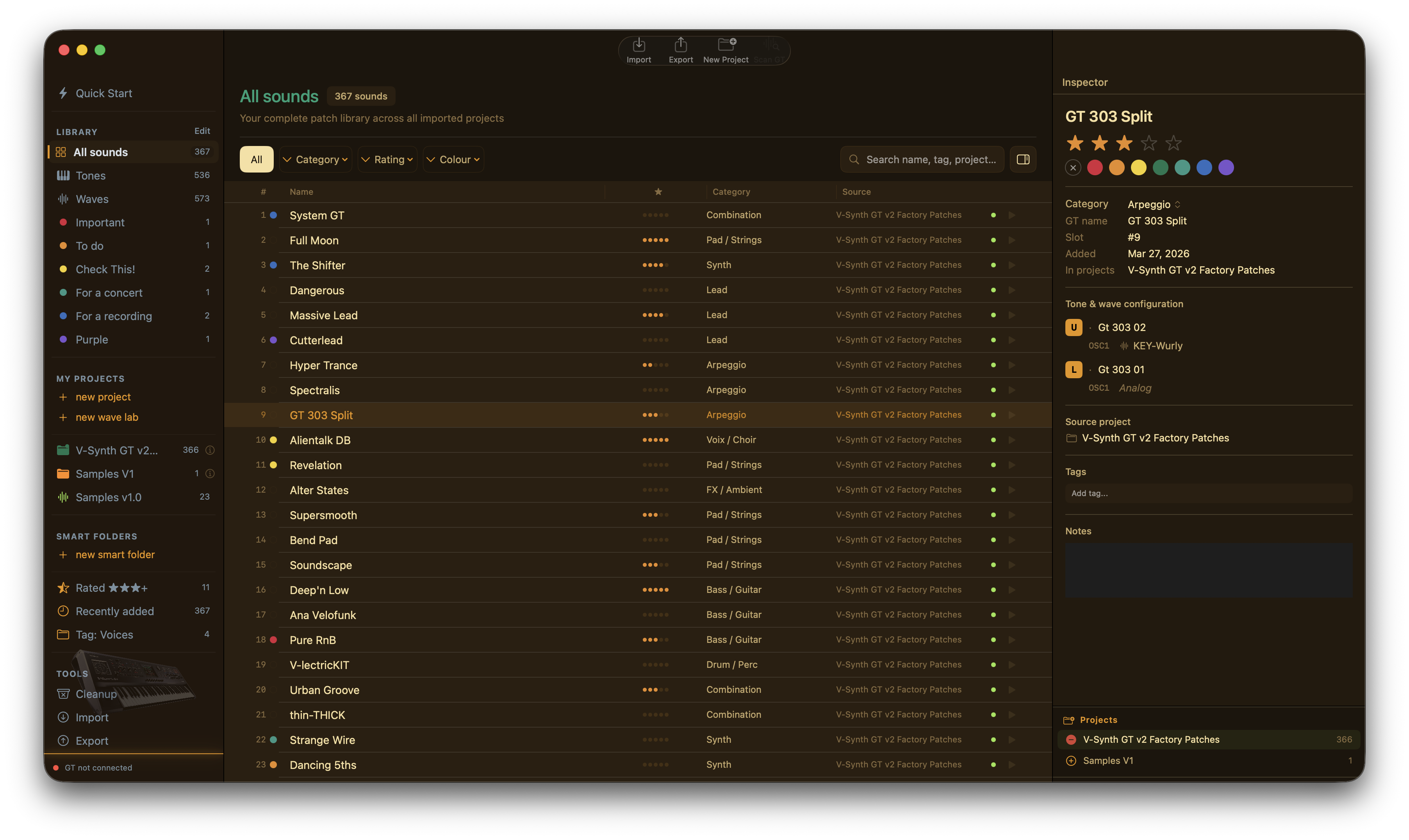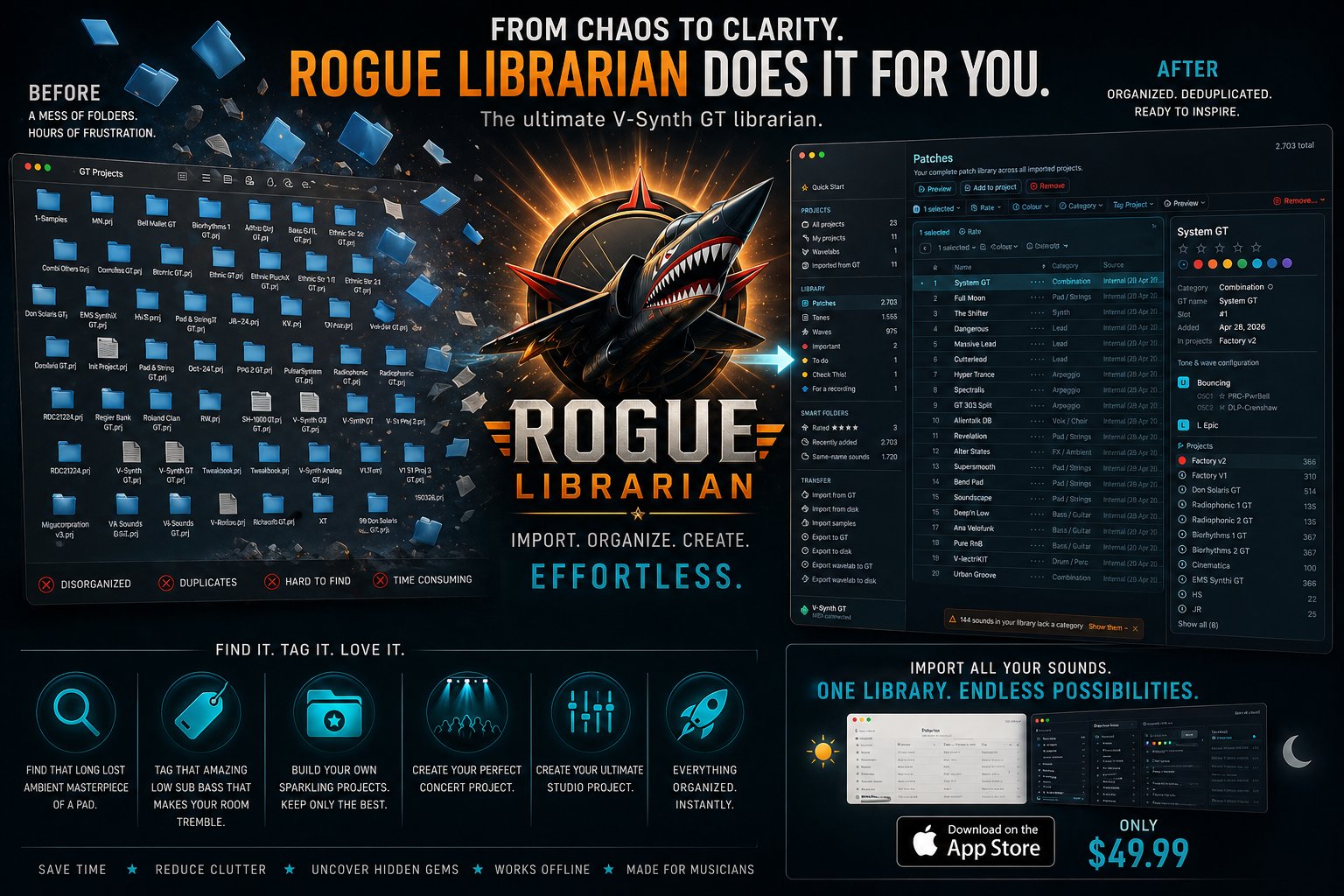
From chaos to clarity — Rogue Librarian transforms a messy folder of GT projects into a clean, organized, deduplicated sound library

YOUR LIBRARY. FINALLY ORGANIZED.

Rogue Kamikaze Software v1.2 · Wizards Release

For owners of the Roland V-Synth GT

You know the feeling. A folder full of .prj files. Random names. Duplicates from years of backups. The thought of cleaning it up alone is exhausting — so you don't, and your favourite sounds stay buried.

Rogue Librarian does it for you. Import everything in one pass. Every patch, every tone, every wave — pulled into one searchable library, deduplicated by content hash, ready to organize. Find that long-lost ambient pad. Tag the sub bass that makes the room tremble. Build your concert project, your studio project, your sound-design palette. Export it back to the GT, clean.

Download on the Mac App Store €49.99 · One-time · Free 1.2 update for 1.1 owners
macOS 15+ Native SwiftUI MIDI & USB Storage Roland V-Synth GT
Release · Spring 2026

WHAT'S NEW IN 1.2

The biggest update since launch. Four new step-by-step wizards walk you through every primary journey — with hardware setup photos, always-visible progress, duplicate detection, and recoverable failure paths.

Plus wavelabs, .wav sample import, multi-source export, a redesigned sidebar, sortable column headers across every list view, and a fully rewritten 11-page help bundle.

5-step wizard

Import from GT

Pull patches, tones, and waves from your hardware over USB Storage. Duplicate detection, post-import cleanup, and a hardware setup walkthrough.

5-step wizard

Import from disk

Bring a .prj folder in from your Mac, USB stick, or backup. Same flow, same duplicate-detection safety net. No GT required.

5-step wizard

Export to GT

Single-source narrowing — ship only the assets each patch references — and multi-source remapping that mixes patches from different GT projects into one export.

5-step wizard

Export wavelab

Send your custom wave bank to the GT — start from a blank palette, fill it with your own samples, and load it onto the synth ready to play.

Wavelabs & .wav import

Bring .wav samples in from disk with peak normalisation and per-sample gain. Browse them alongside GT-project waves and bundle them into wavelabs.

Wave categories

Eight built-in categories plus user-extensible custom categories that persist across launches.

Sidebar redesign

New ProjectsHubView consolidates My Projects and GT Imports under unified page-header chrome, with a capability-aware GT connection dot.

Free update for 1.1 owners. Pricing is unchanged at €49.99 on the Mac App Store.

Quick Start

EVERYTHING AT
YOUR FINGERTIPS

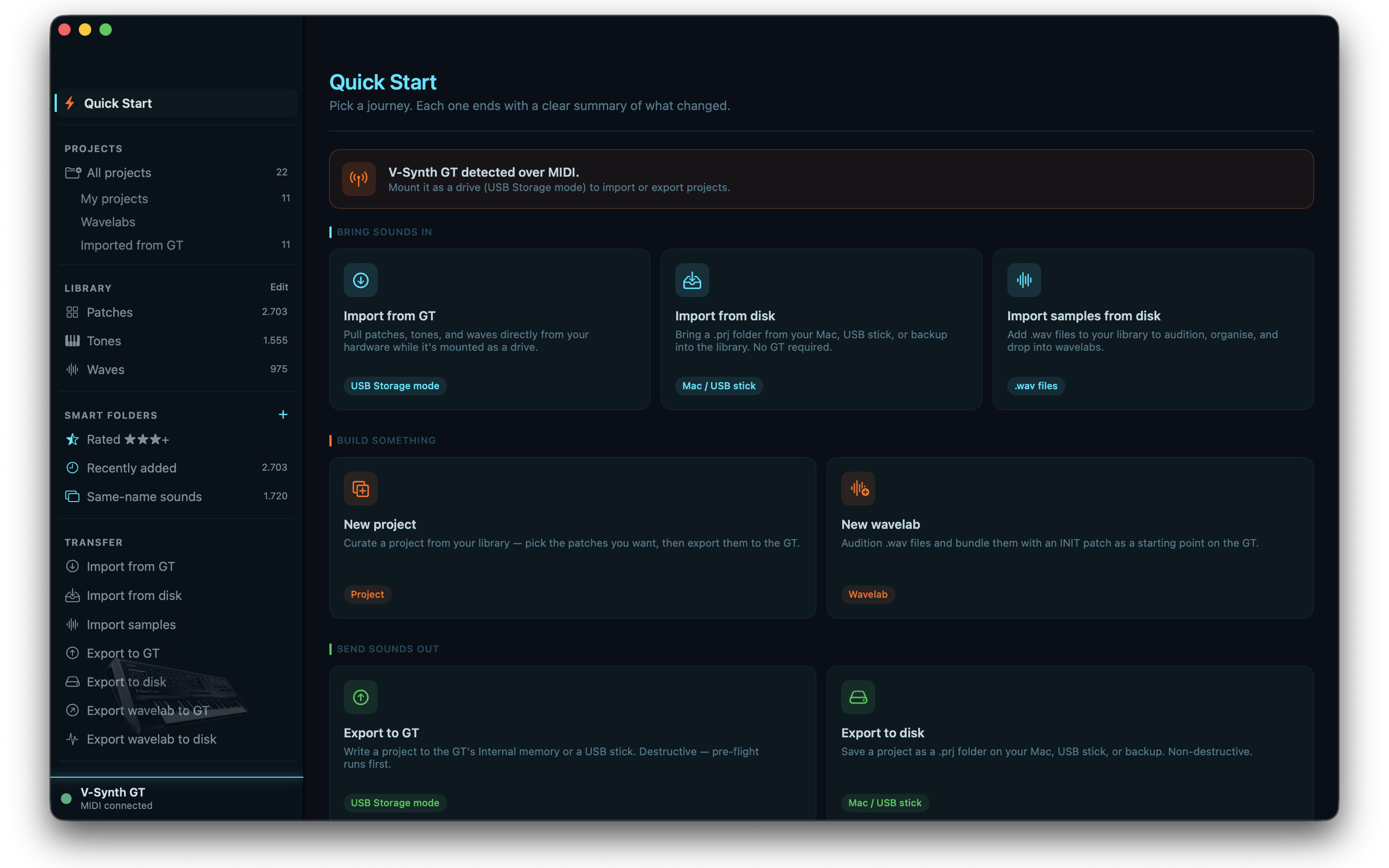
The home screen surfaces every primary journey — Bring sounds in, Build something, Send sounds out — with one-tap access to the relevant wizard.

Rogue Librarian is designed around how GT owners actually work: importing projects off the hardware, building new ones from favourite sounds, importing your own samples, and pushing the result back to the synth. The new Quick Start screen makes that flow immediate.

Quick Start screen with journey cards and the redesigned sidebar Quick Start
Import wizard

YOUR GT.
ON YOUR MAC.

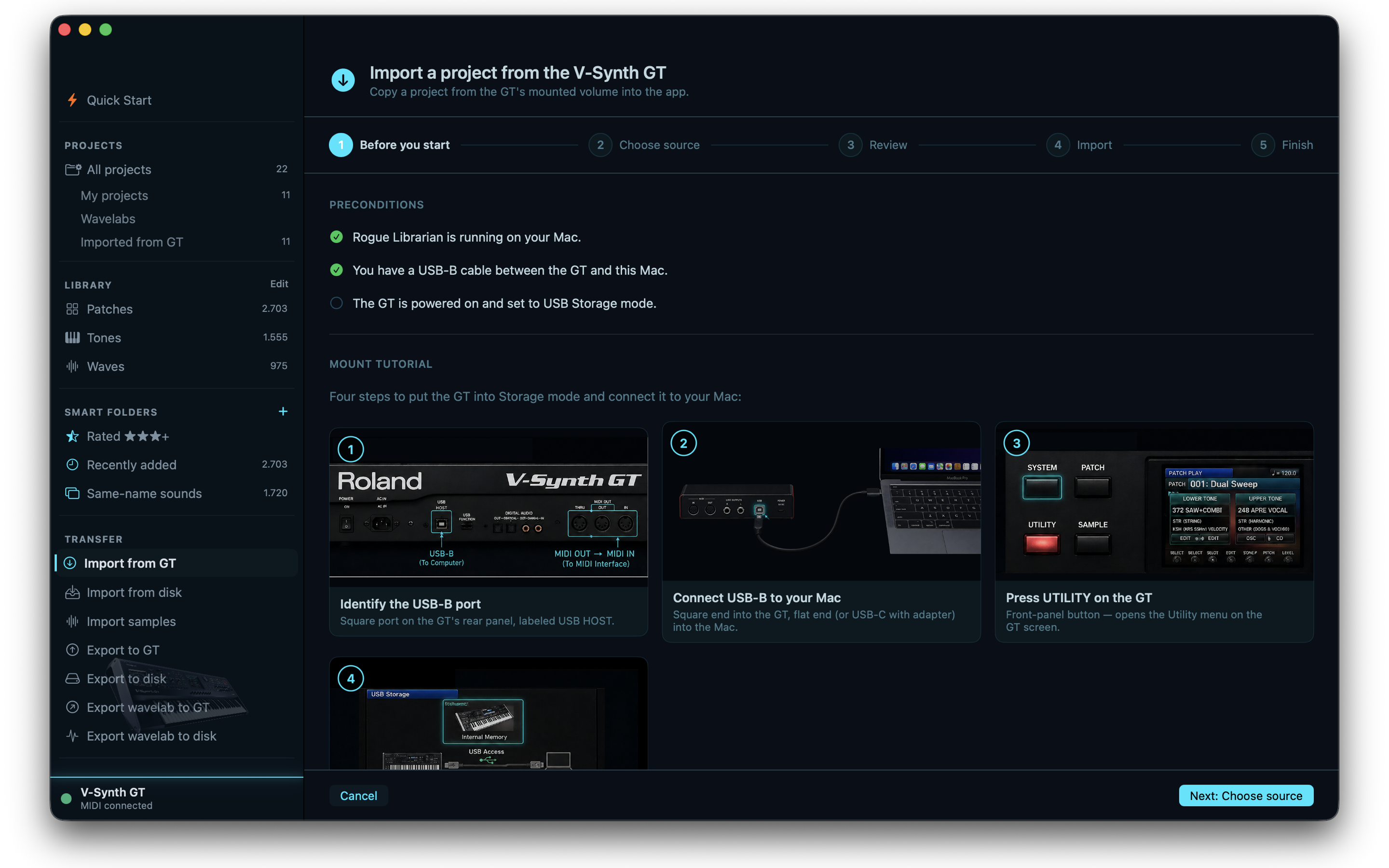
Copy a complete GT project — patches, tones, and waves — from the synth's mounted volume into the app, guided step-by-step with hardware setup photos and always-visible progress.

The new five-step wizard handles the entire journey: a setup walkthrough showing exactly how to mount the GT, project picking with duplicate detection, review, import, and a finish step that surfaces anything that needs follow-up. The same wizard exists for .prj folders already on your Mac.

  • USB Storage mode walkthrough with photos
  • Duplicate detection (name + content hash)
  • Full patch / tone / wave correlation
  • SHA256 content hashing for deduplication
  • Auto-snapshot on import
  • Post-import cleanup pointers
Import from GT wizard with hardware setup photos Import from GT — Step 1
Library

BROWSE. SEARCH.
ORGANISE.

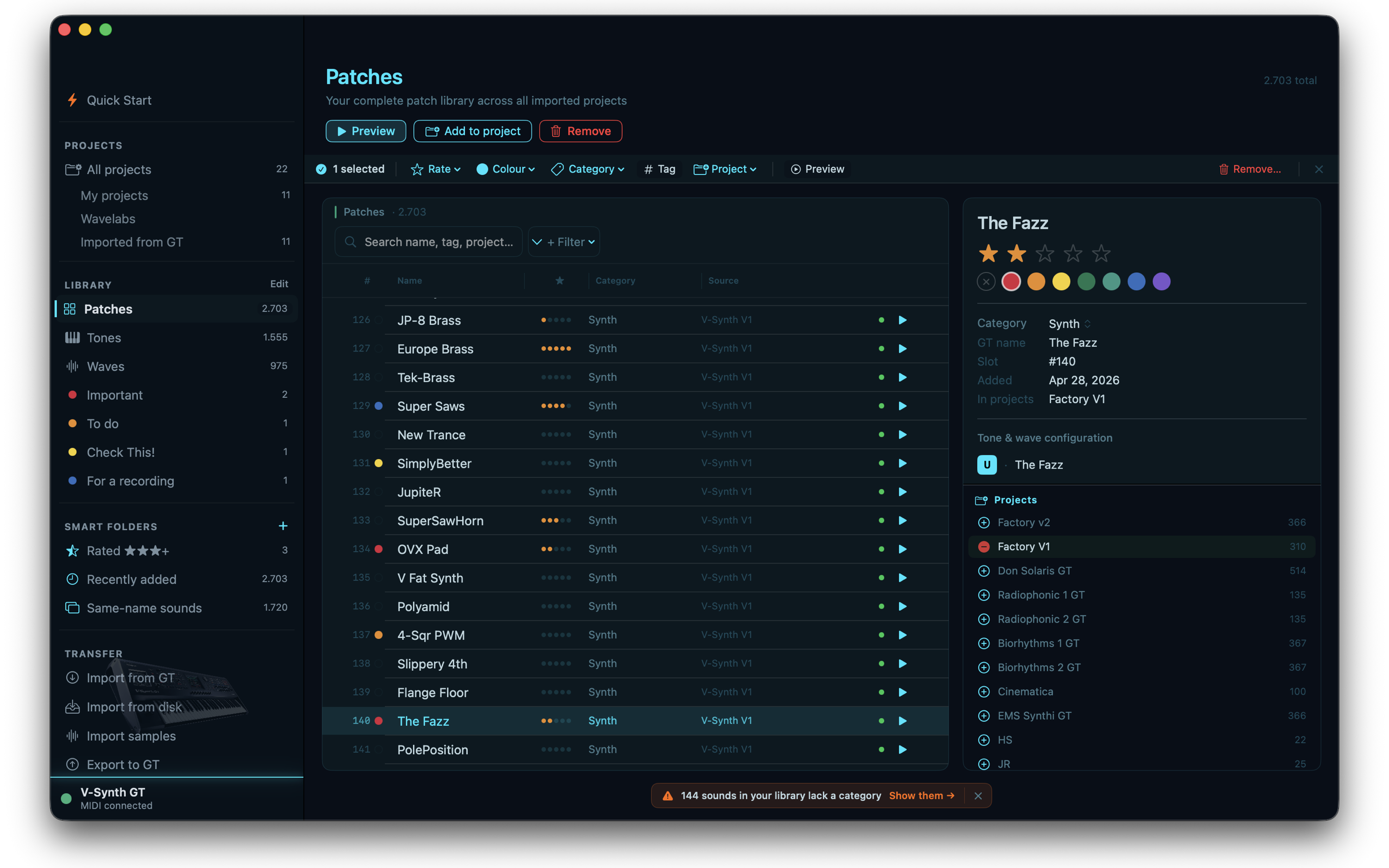
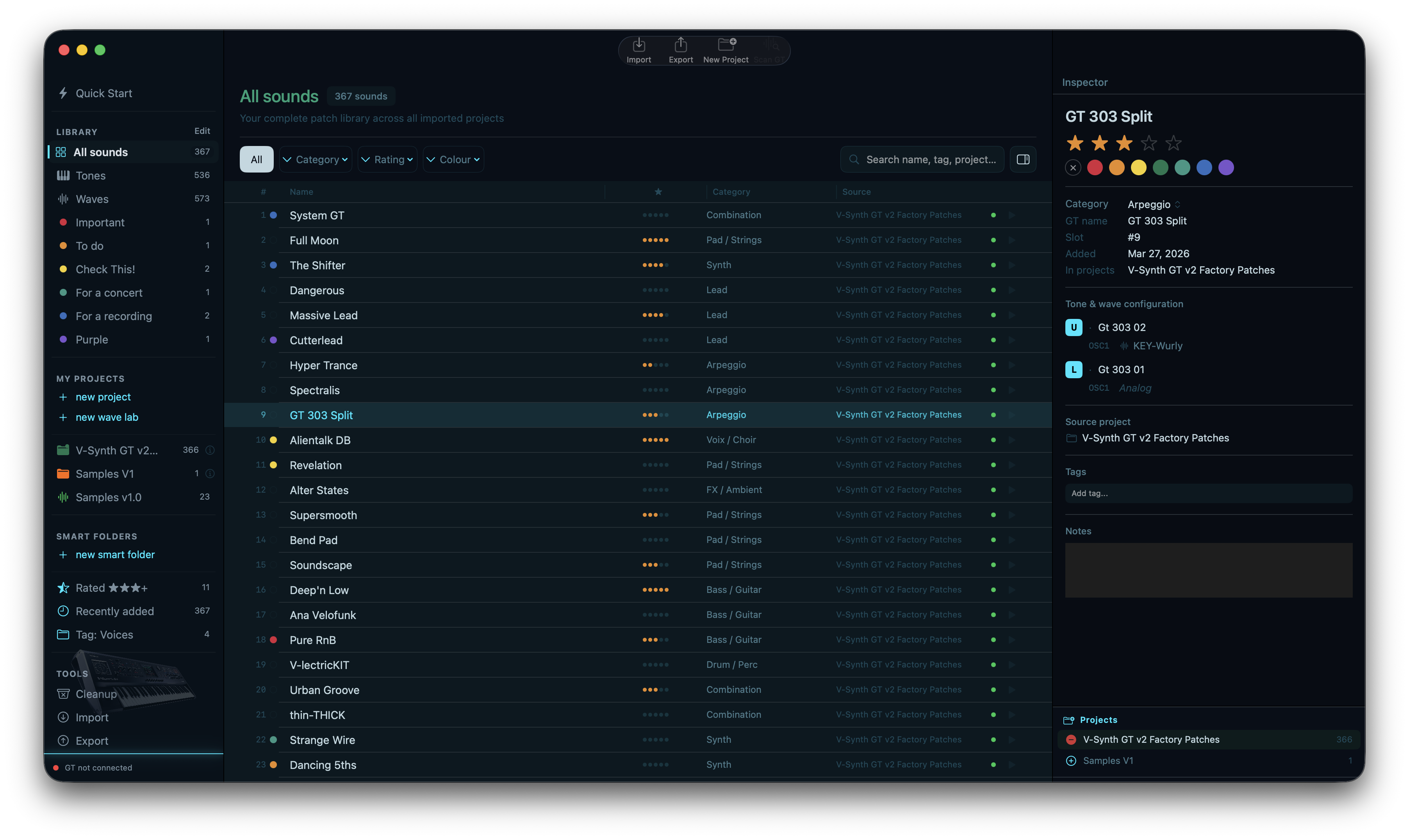
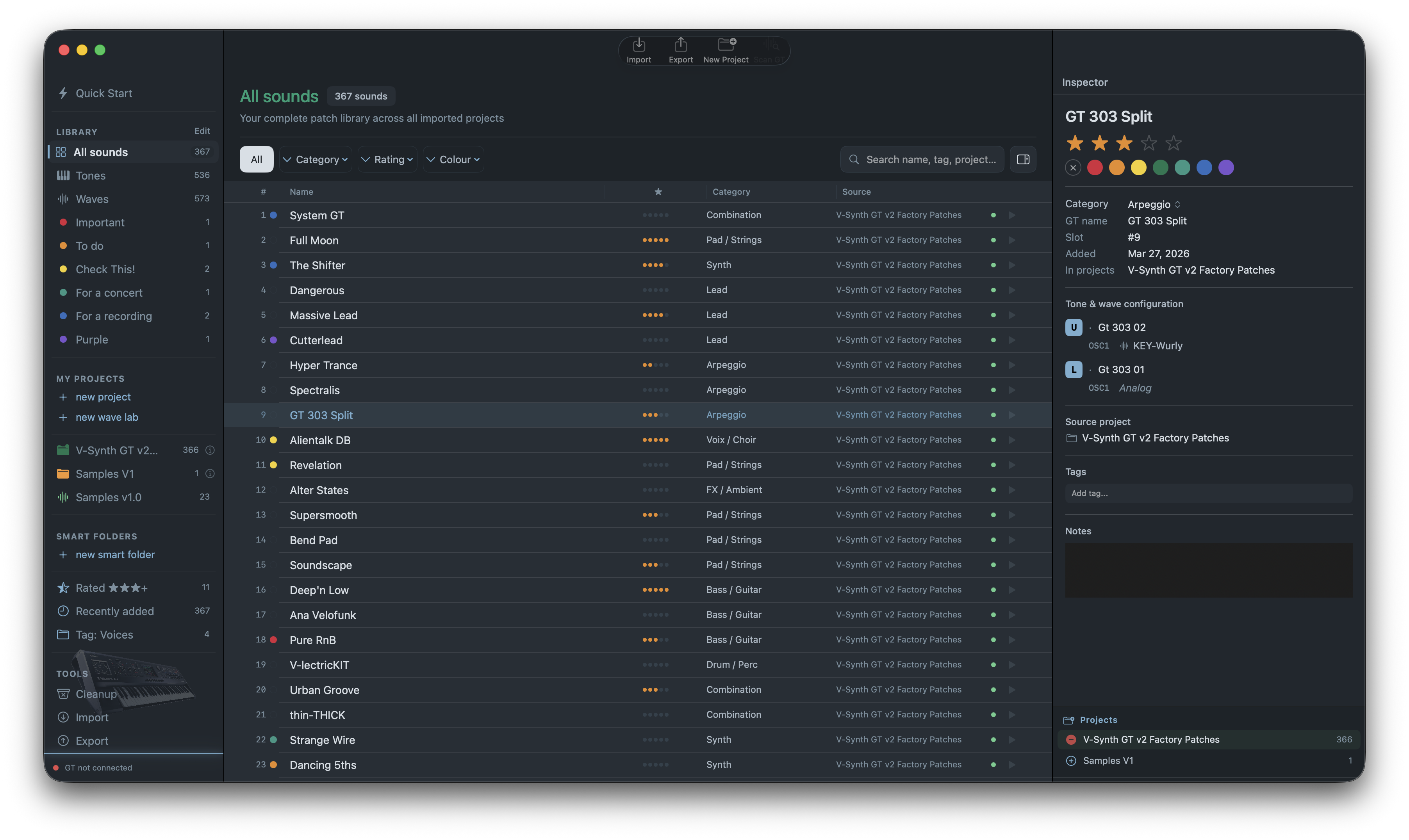
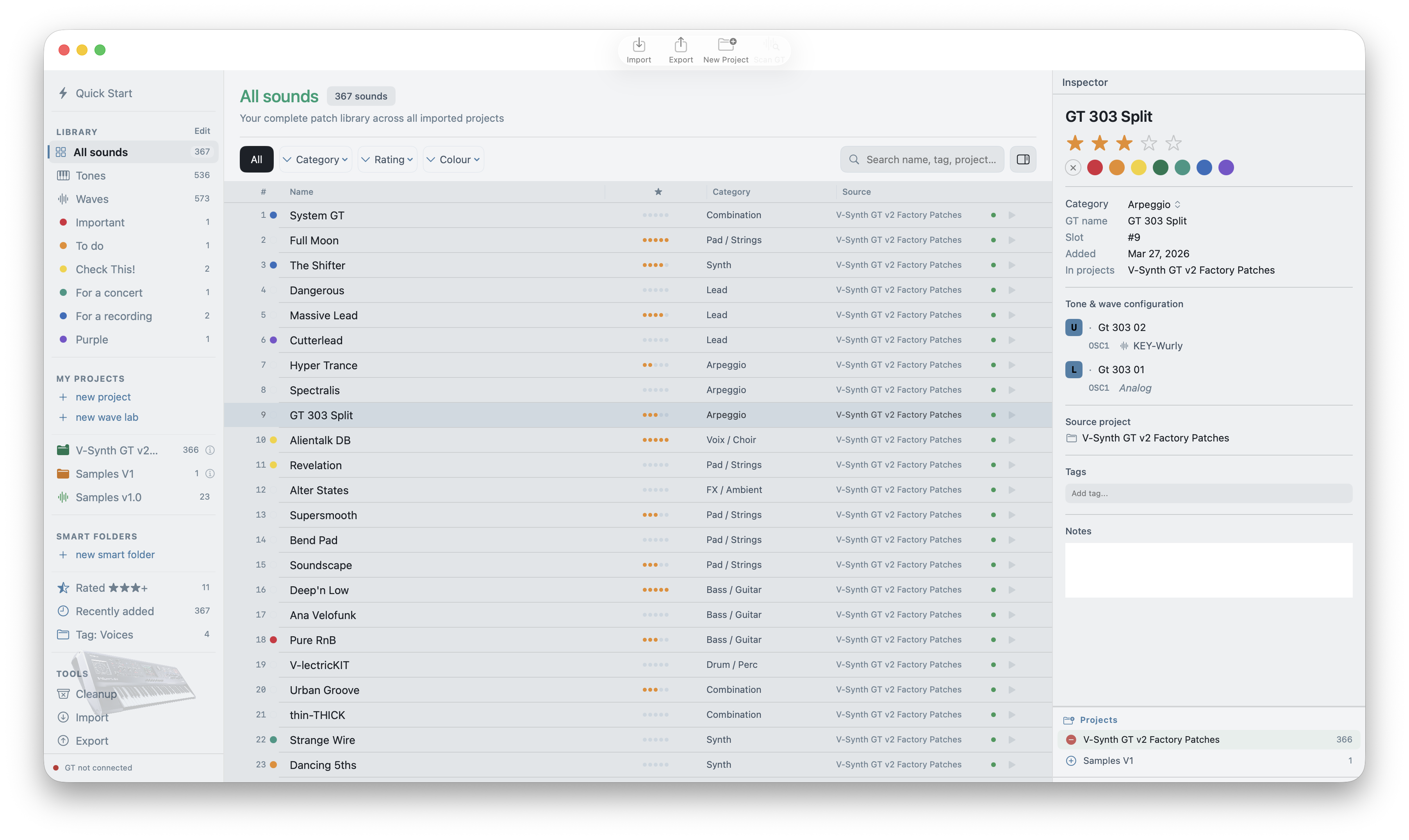
All your imported sounds in one place. Browse, search, tag, rate, and inspect every patch with full tone and wave visibility. Now with sortable column headers across every list view.

The Library is the heart of Rogue Librarian. Smart Folders let you filter by category, scan status, rating, tags, or any combination. Every sound shows its complete patch architecture — Upper and Lower tones, both oscillators, all waves.

  • Full patch browse with search
  • Smart Folders with custom filters
  • Tags, ratings, colour labels
  • Sortable column headers (new in 1.2)
  • Patch notes and aliases
  • Tone name display
Sound Library with sortable column headers and inspector panel Sound Library
Smart Folders

YOUR LIBRARY,
YOUR WAY

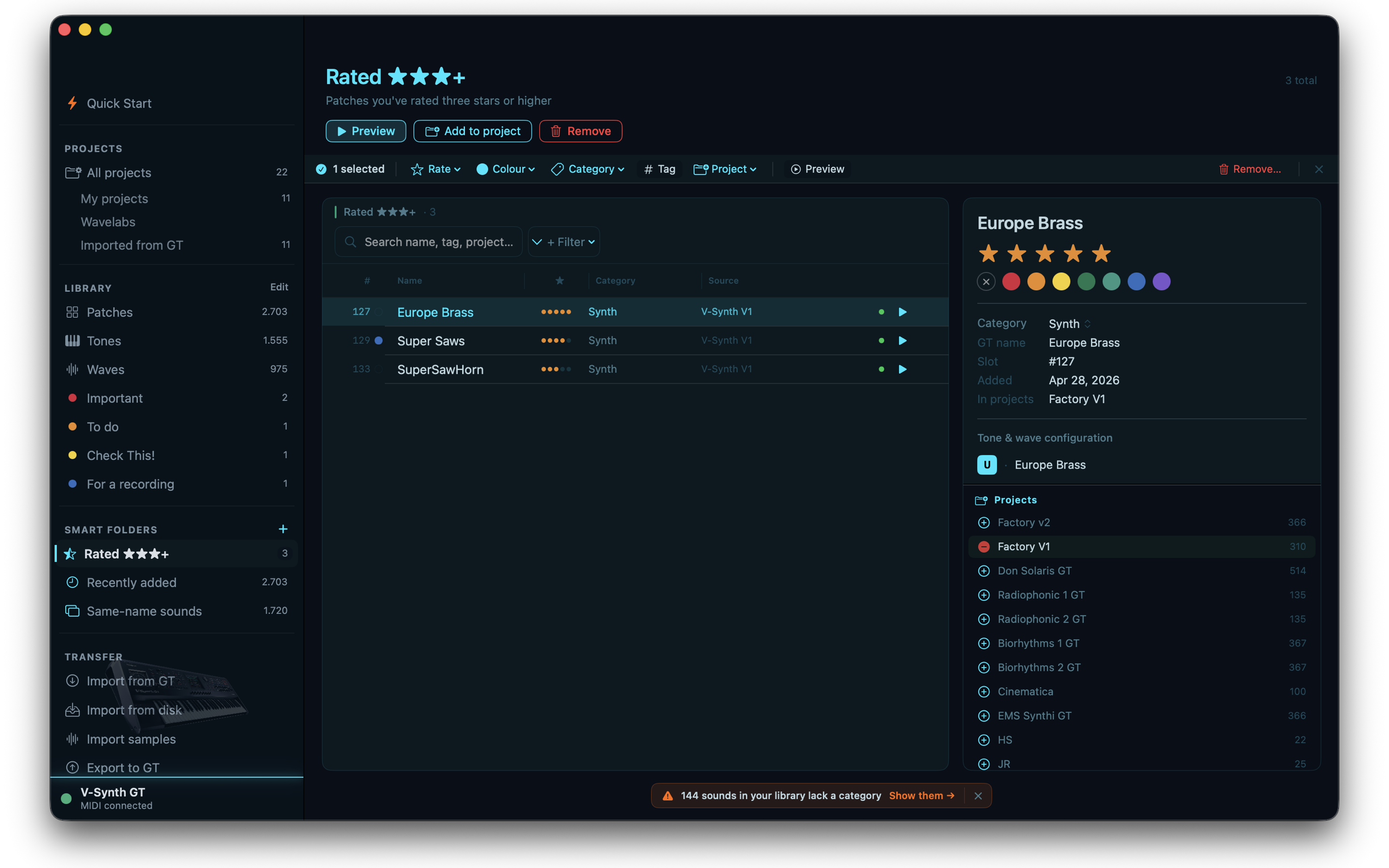
Smart Folders update automatically as your library grows. Filter by any combination of criteria to surface exactly the sounds you need.

Smart Folders with rating filter and project breakdown Smart Folders
Projects

BUILD NEW
GT PROJECTS

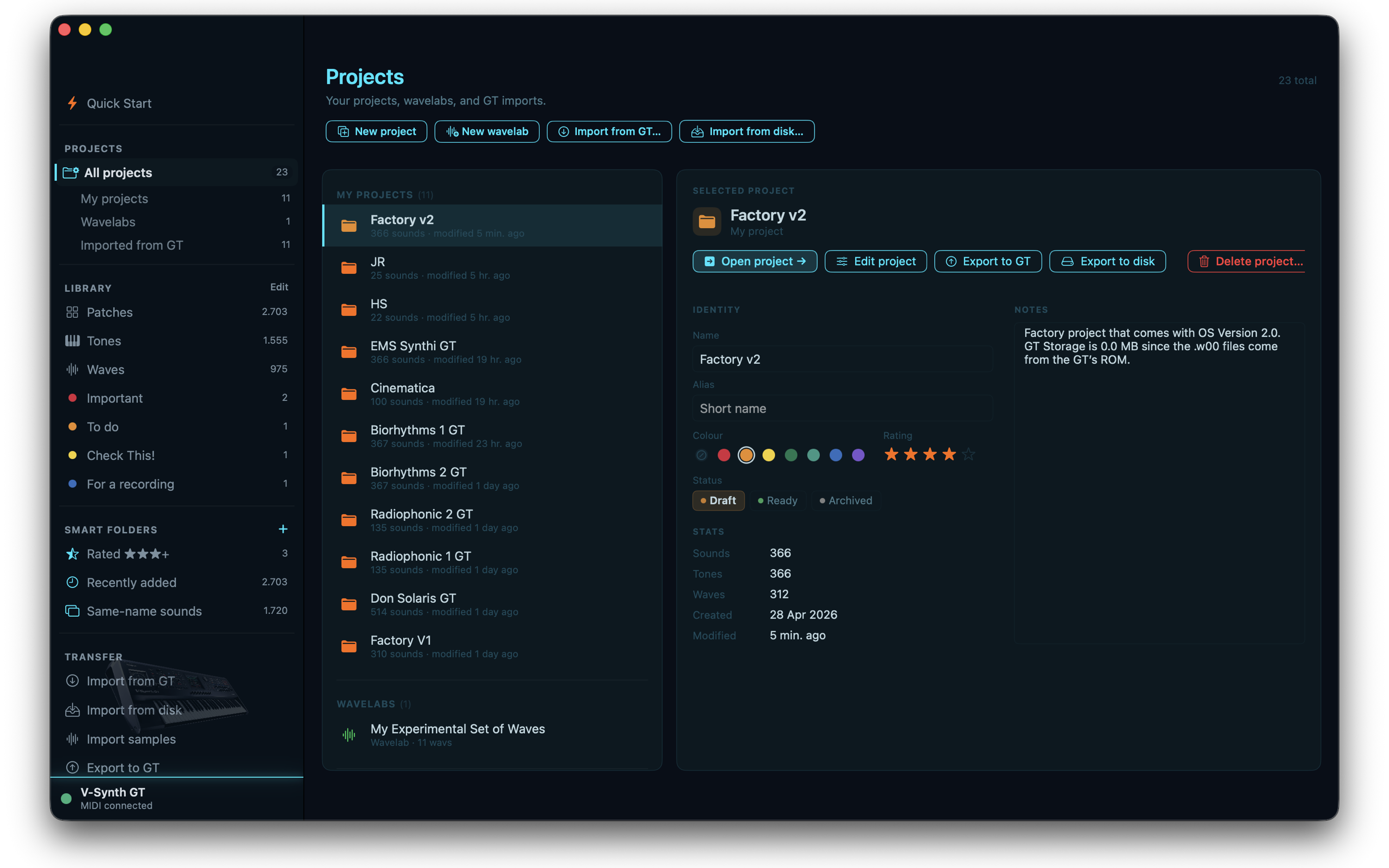
Assemble custom projects from your library sounds, then export them straight back to the V-Synth GT. The redesigned Projects hub puts everything — your projects, your wavelabs, your GT imports — under a single header.

Select sounds from across all your imported projects, mix patches from different sources into a single export, reorder, rename, review the patch architecture, and export a clean project file directly to the GT.

Projects hub showing My Projects, Wavelabs, and GT Imports All Projects
Wavelabs · New in 1.2

YOUR SAMPLES.
ON YOUR GT.

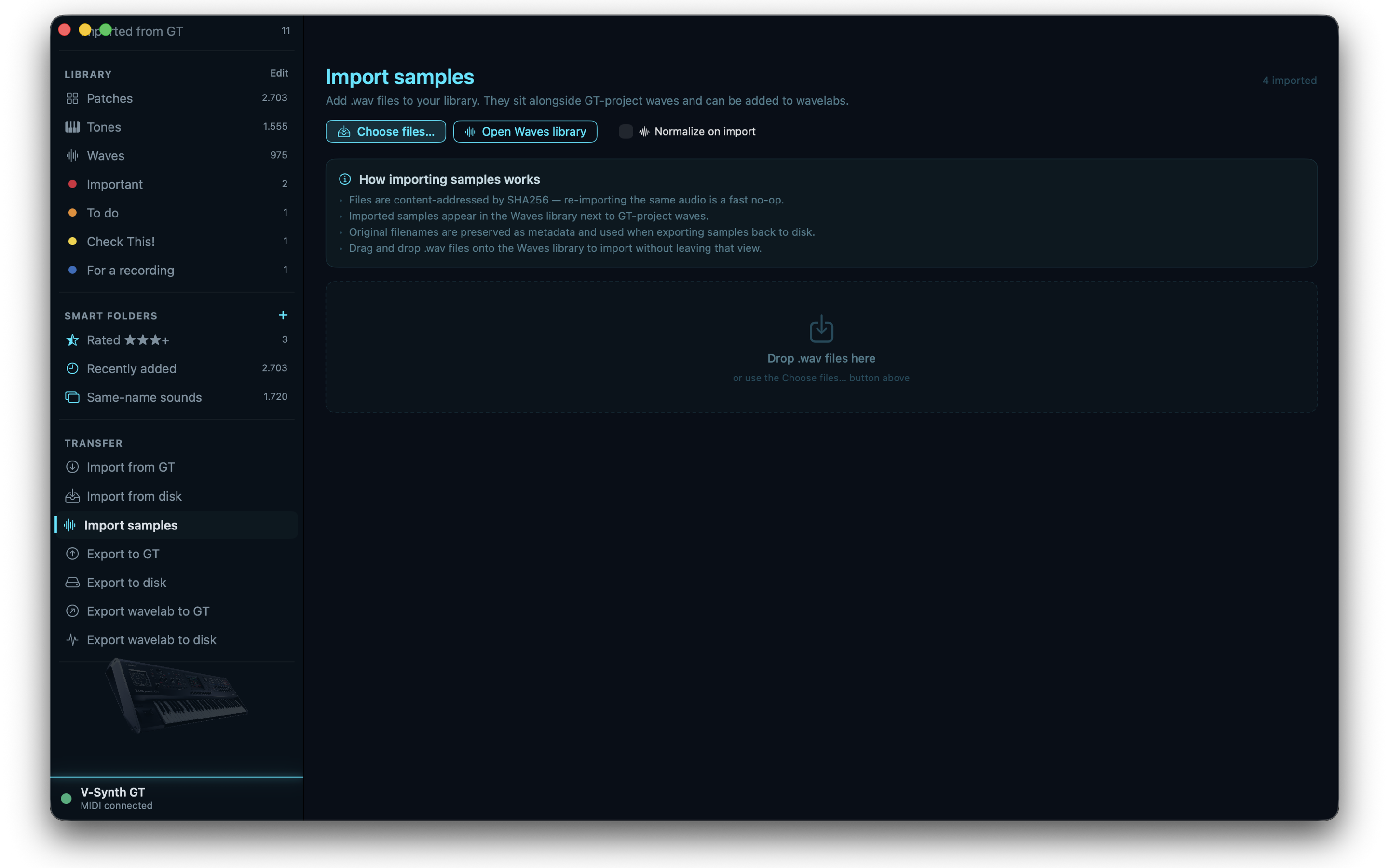
Import your own .wav files, bundle them into a wave-only project, and load them onto the V-Synth GT as a fresh sample bank — ready to play with on the hardware.

A Wavelab is a special kind of GT project that contains only waves: no patches, no tones, just the samples you want to work with on the synth. Drop in your own .wav files, audition them, organise them with the same wave categories your GT projects use, and export the lot to the hardware as a regular .prj. The GT loads it like any other project — only this one is yours from the ground up.

Imports are content-addressed by SHA256, so re-importing the same audio is a no-op. Peak normalisation is non-destructive — your original .wav files are never modified. Gain is stored as metadata and applied at preview and export time, editable later in the wave inspector at ±24 dB.

  • Drag & drop .wav import from disk
  • Peak normalisation to −1 dBFS
  • Non-destructive per-sample gain (±24 dB)
  • SHA256 dedup against the wave pool
  • User-extensible wave categories
  • Unified browser with GT-project waves
  • Export wavelab to GT (5-step wizard)
  • Export wavelab to disk for sharing
Import samples view with peak-normalize toggle and drop zone Import Samples
Project Info

ANNOTATE
EVERY PROJECT

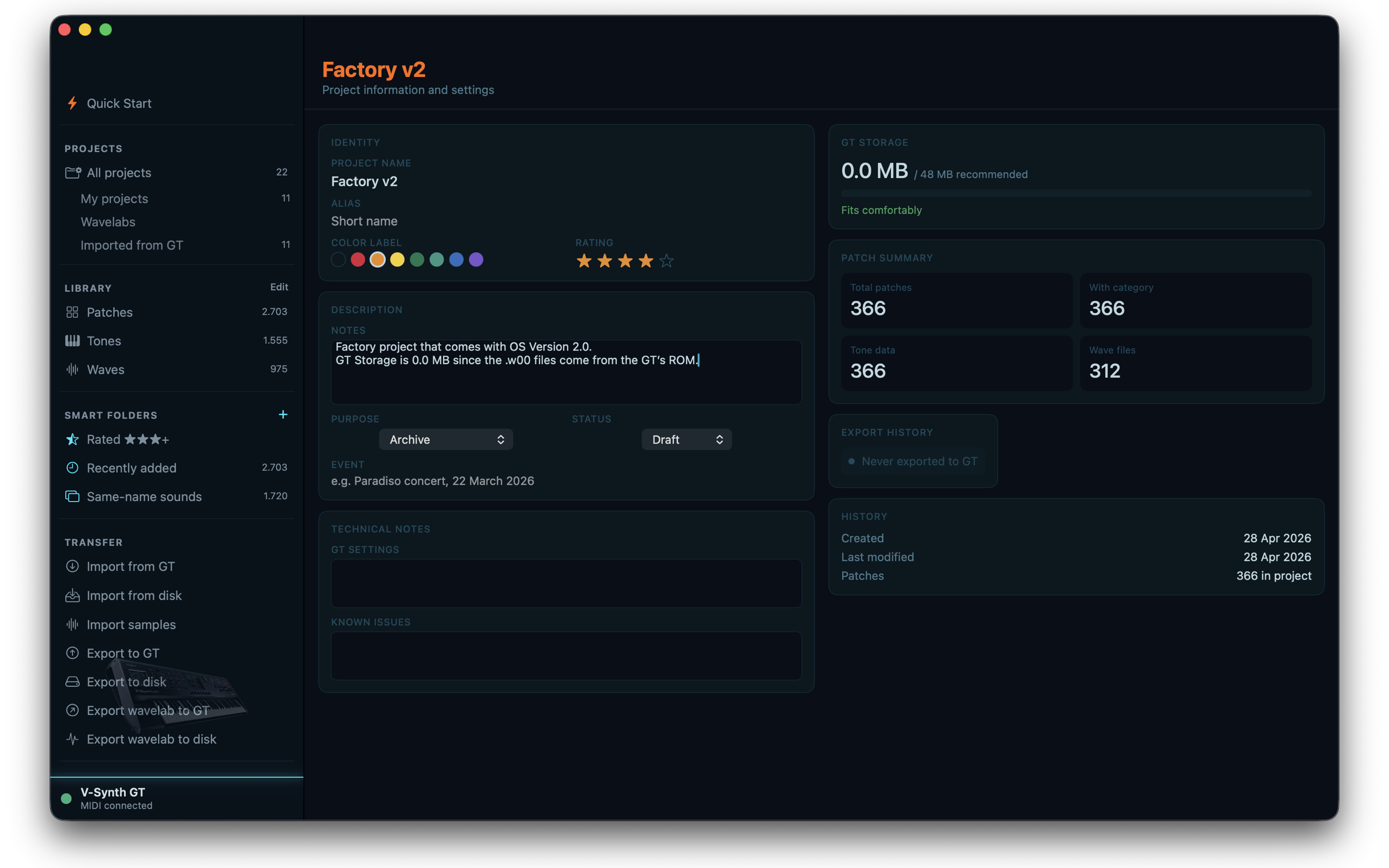
A dedicated info page for every project — capture the context that makes a build worth keeping. Aliases, ratings, color labels, purpose, status, technical notes, GT settings, known issues, and a live storage gauge against the GT's recommended ceiling.

Set a short alias for projects that need it. Tag with a color and a star rating. Mark a project as Draft, Ready, or Archived. Note the event it was built for ("Paradiso concert, 22 March 2026"). Drop in technical notes about the GT settings used, or a list of known issues you want to remember next time you load it. The GT Storage gauge shows your wave-data footprint against the ~48 MB recommended ceiling, with a one-line verdict so you know whether the project will fit comfortably before you export.

  • Identity — name, alias, color label, rating
  • Description, notes, purpose, status, event
  • Technical notes — GT settings, known issues
  • GT Storage gauge with capacity warning
  • Patch summary — totals by tone and wave
  • Export history — track sends to the GT
  • Created / last modified timestamps
Project Info page with identity, notes, technical notes, GT storage gauge, and patch summary Project Info
MIDI · Scan · Live Inspector

LIVE CONNECTION
TO YOUR GT

Connect via MIDI and query the GT directly. Scan category, tone names, and OSC wave numbers for every patch — or probe a single slot live with the GT Patch Inspector.

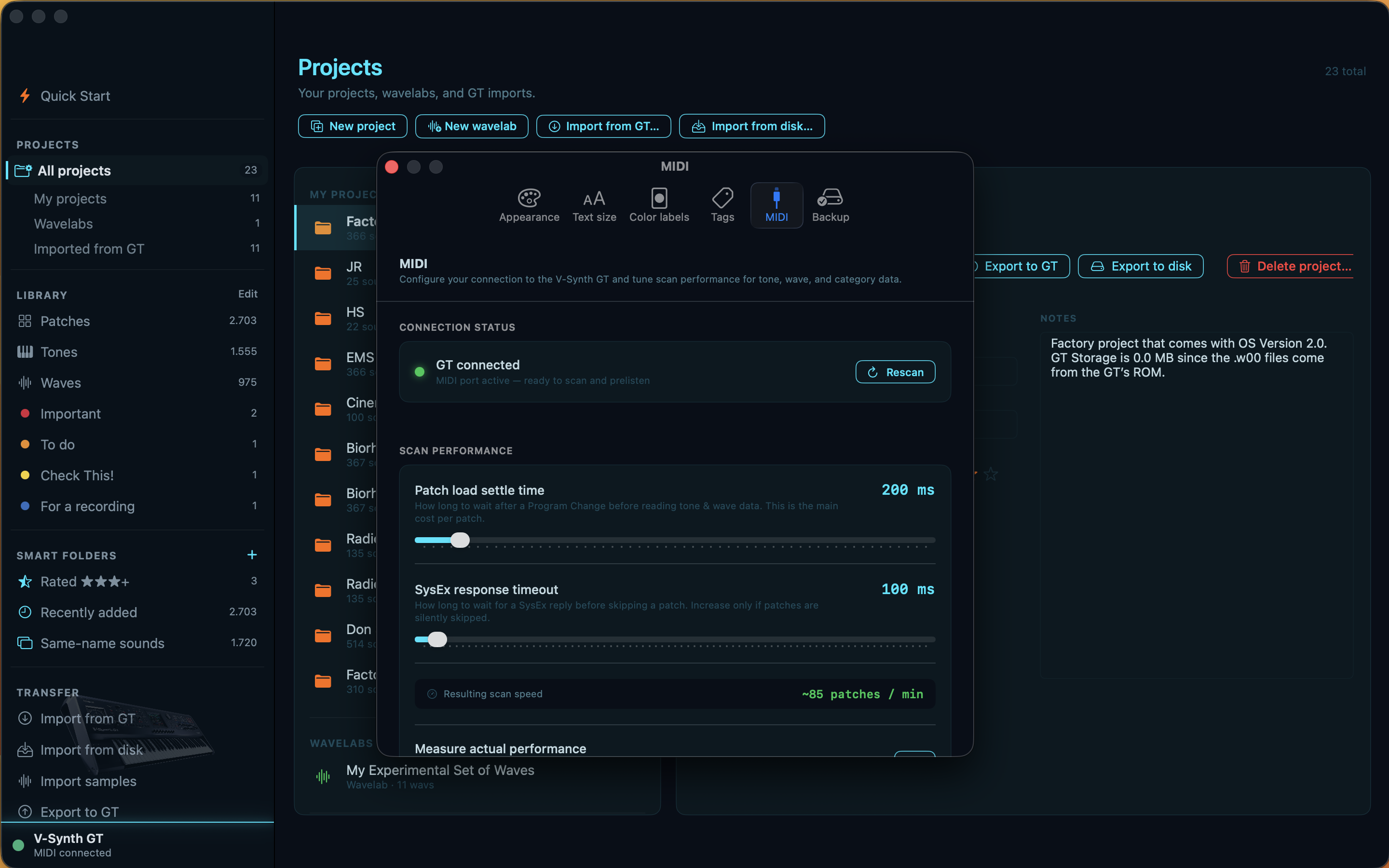
Rogue Librarian supports two mutually exclusive USB modes: MIDI mode for scanning and live inspection, and Storage mode for reading and writing project files. The wizards guide you through the correct mode for each operation, and the new MIDI settings pane lets you tune scan performance for your particular interface.

Confirmed MIDI Setup

Interface Any class-compliant USB-MIDI DIN interface
GT Device ID 17 (SysEx uses 0x10)
GT Settings required System Ex: ON · Edit Data: ON

⚠ Roland's official V-Synth GT USB driver shipped in the PowerPC / early-Intel era and does not work on modern macOS. Use a class-compliant USB-MIDI DIN interface for MIDI; Storage mode works directly via the mounted USB volume.

MIDI settings pane with patch load settle time and SysEx response timeout sliders MIDI Settings
Export · New wizard in 1.2

SEND IT BACK,
SAFELY.

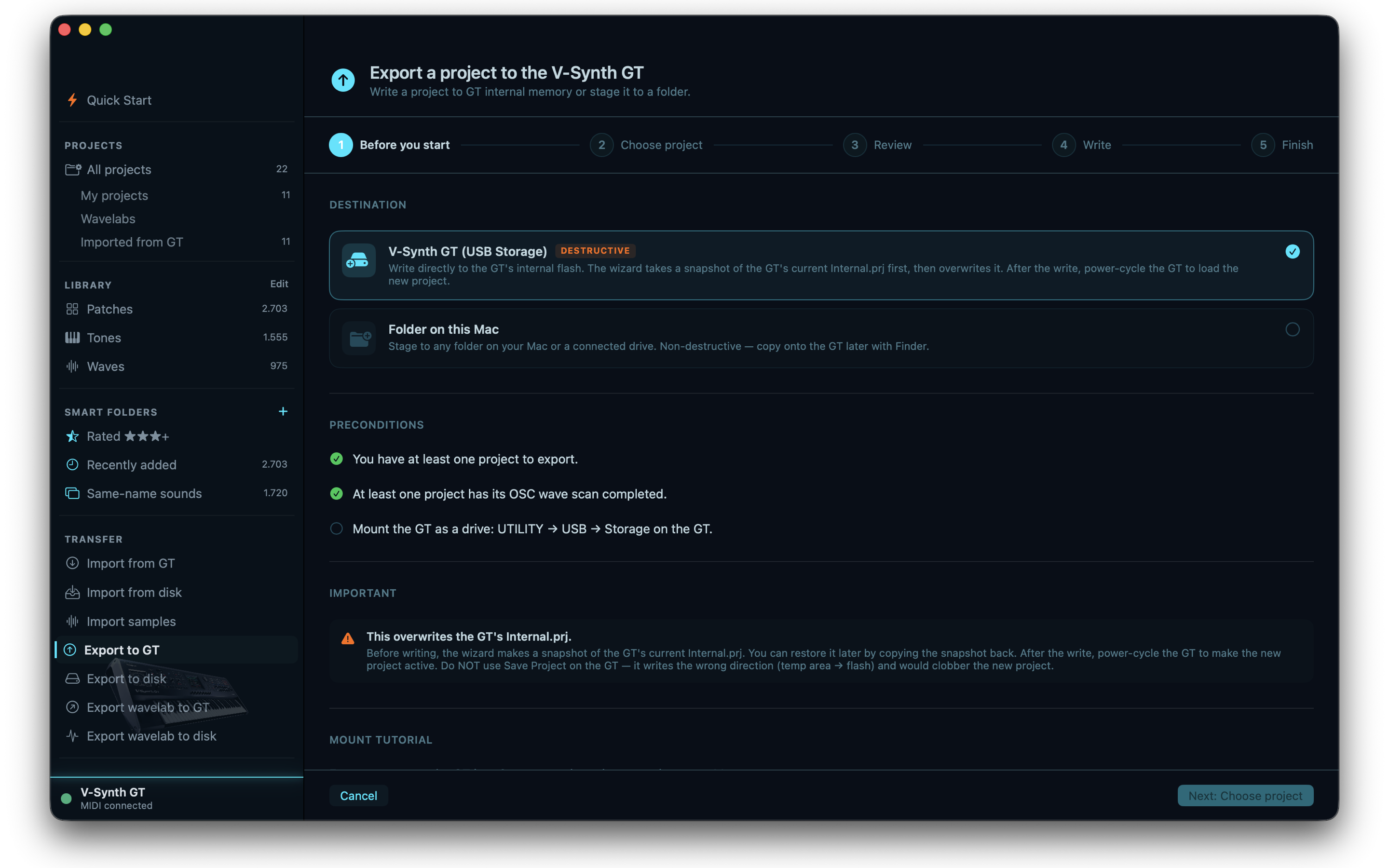
A guided five-step wizard for the most consequential operation in the app — writing a project to the V-Synth GT's internal flash. Pre-op snapshot and asset narrowing keep your data safe and your exports lean.

Before any destructive write, the wizard takes a snapshot of the GT's current internal.prj. If anything goes wrong, the snapshot is one click to restore. The export pipeline narrows assets to exactly what each patch references — single-source builds ship only the bytes that matter, and multi-source builds remap slot numbers across mixed origins so every reference stays correct.

  • Pre-export snapshot of internal.prj
  • Single-source narrowing (per-patch asset minimisation)
  • Multi-source slot remap (mix patches across projects)
  • Tone & wave reference encoding
  • Stage to a folder on your Mac as a non-destructive alternative

⚠ After exporting, power-cycle the GT to commit the new project to the playback area. The wizard reminds you of this on the Finish step.

Export to GT wizard step 1, with destructive-write warning and snapshot policy Export to GT — Step 1
Tools

CLEANUP, SLIM DOWN
& BACKUP

Keep your projects clean and your data safe. Rogue Librarian includes a full suite of maintenance tools.

  • Cleanup — detect and remove empty or ghost patch slots
  • Recompute wave hashes
  • Slim Down — bulk removal with per-criterion toggles and live count preview
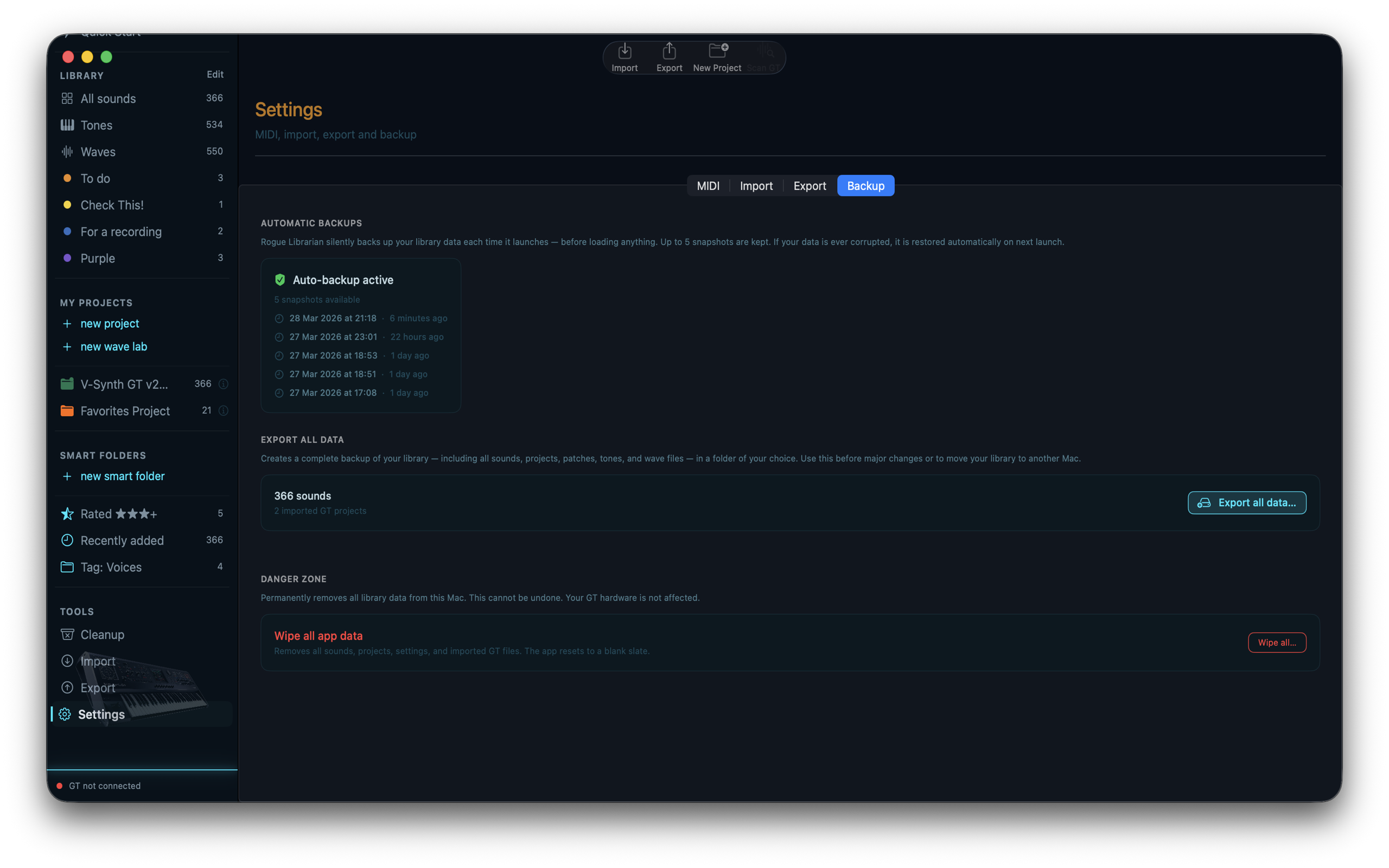
  • Auto-snapshot on launch
  • Manual backup export
  • Restore from any snapshot
Backup and Restore screen Backup & Restore
Appearance

CHOOSE YOUR
COLOUR THEME

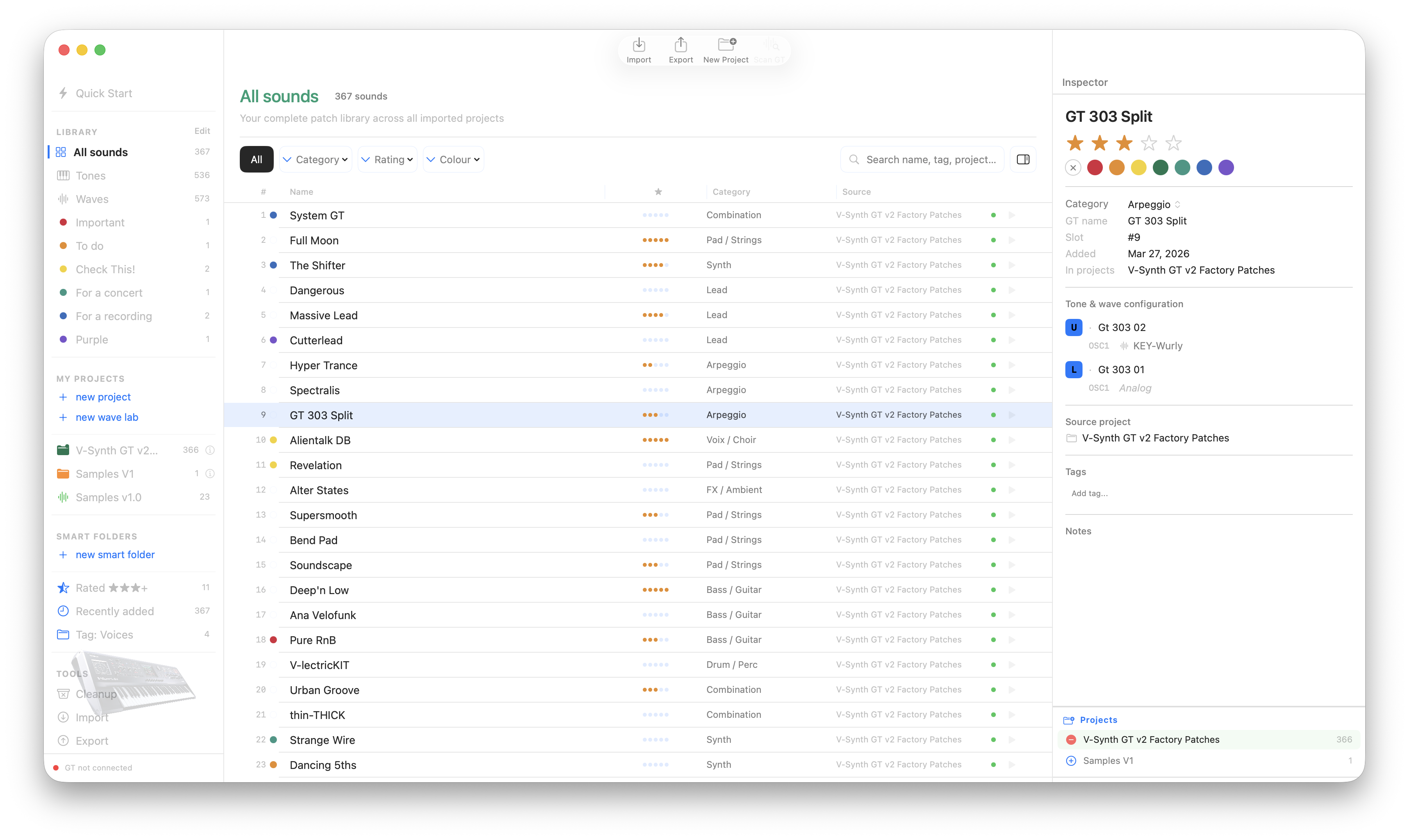
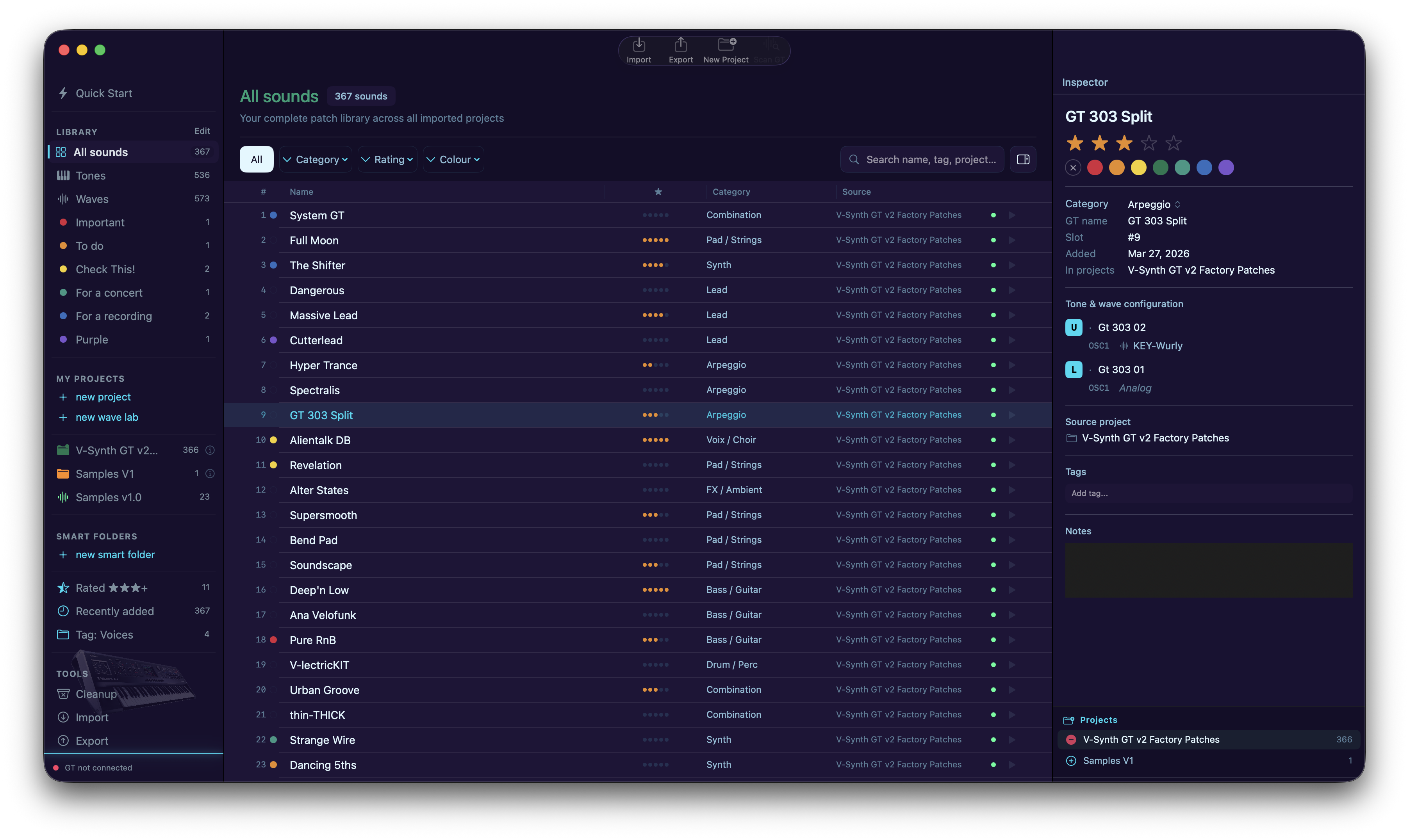
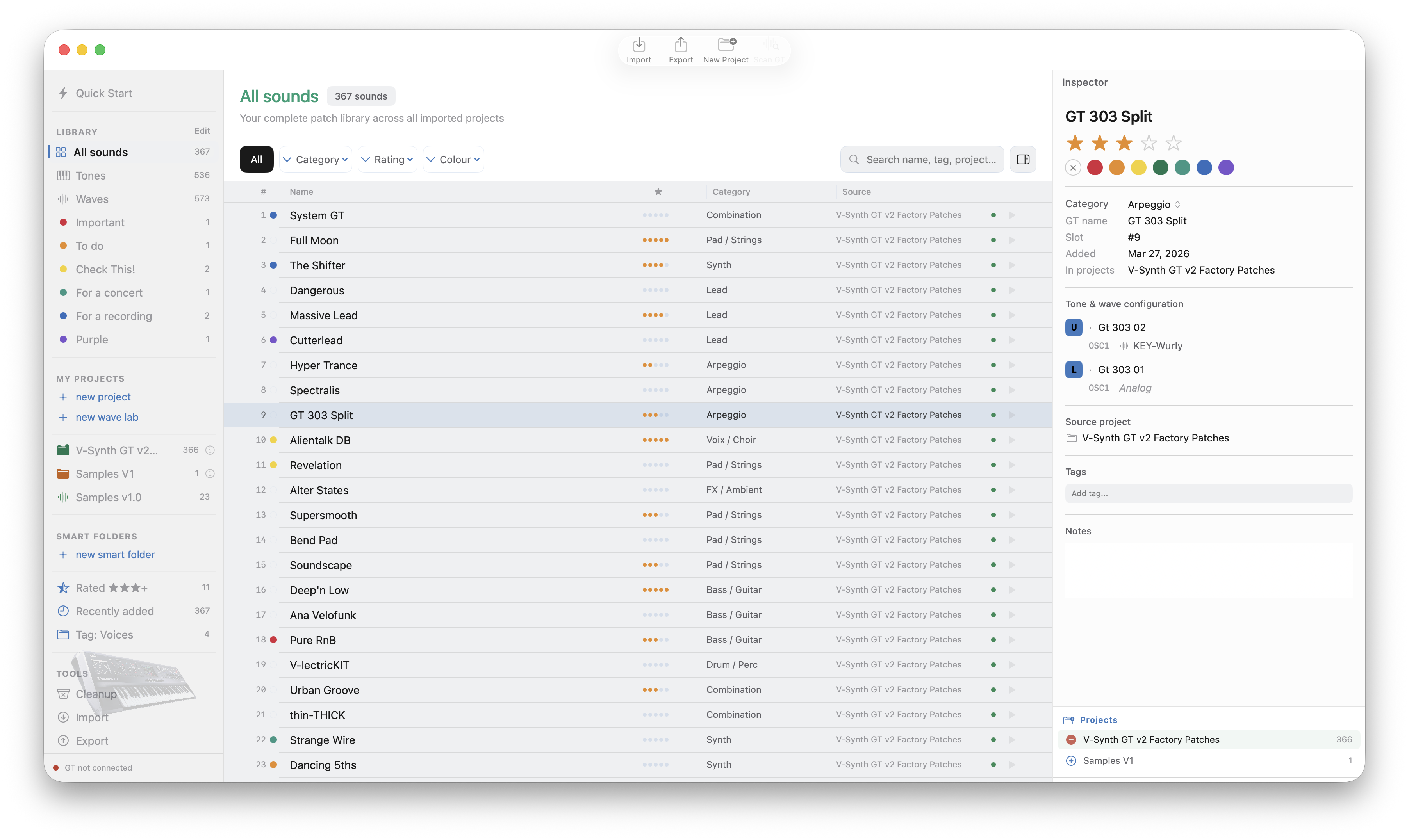
Rogue Librarian ships with 10 colour themes. Click any theme to preview it — or watch them cycle on their own.

V-Synth GT theme macOS theme Neon theme Amber theme Midnight theme Dusk theme Solstice theme Slate Dark theme Slate theme Canvas theme
Pricing

ONE PRICE.
YOURS FOREVER.

No subscriptions. No in-app purchases. Buy once from the Mac App Store.

49.99

One-time purchase · Mac App Store

✓ Free 1.2 update for existing 1.1 owners

  • Four step-by-step wizards
  • Wavelabs & .wav sample import
  • Multi-source export
  • Full patch library manager
  • Project builder & export
  • MIDI scan & live inspector
  • Smart Folders with custom filters
  • Backup & restore
  • Cleanup & Slim Down
  • 10 colour themes
  • All future updates
FAQ

FREQUENTLY
ASKED QUESTIONS

Answers to the most common questions from V-Synth GT owners. Didn't find yours? Drop a message via Support below.

What hardware do I need to connect the V-Synth GT to my Mac?

You need a USB-B cable for file transfer (USB Storage mode), and — for MIDI scanning, prelisten, and live category writes — a class-compliant USB-MIDI interface with DIN connectors. Wire interface OUT → GT IN, GT OUT → interface IN. Both directions are required.

About the Roland USB driver: Roland's official V-Synth GT USB driver shipped in the PowerPC / early-Intel macOS era and doesn't work on modern macOS. Rogue Librarian is built around the class-compliant DIN-MIDI route — that's the configuration to use.

Why does the app show "GT not connected" when my GT is plugged in over USB?

The indicator reflects the MIDI connection, not USB Storage. The two transports do different jobs:

  • USB Storage — moves files. Mount the GT as a drive on your Mac; the app reads and writes projects from it.
  • MIDI (via class-compliant DIN interface) — live scanning, prelisten, writing categories back. This is what the indicator tracks.

For MIDI to work, make sure:

  • The GT is not in USB Storage mode — it needs to be in normal play mode.
  • Both directions are wired: interface OUT → GT IN, GT OUT → interface IN.
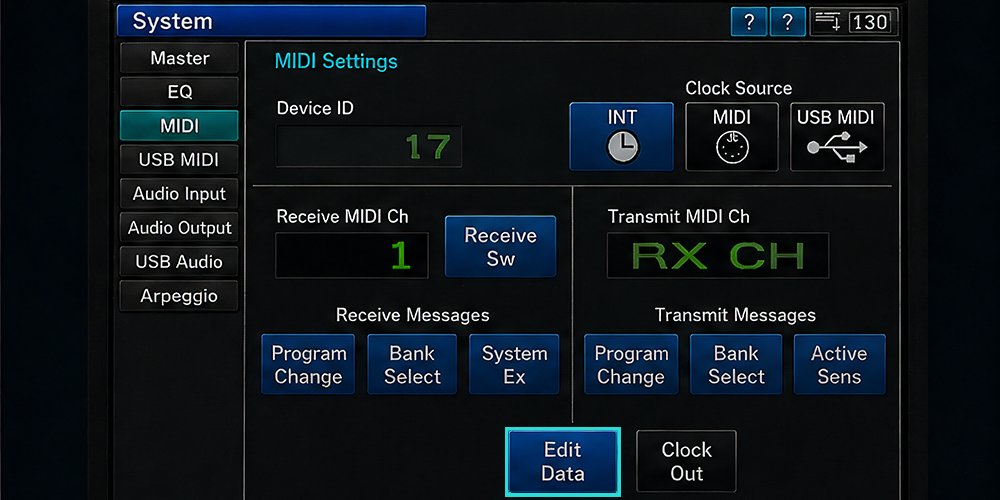
  • On the GT, press System and go to the MIDI screen. Set: Device ID → 17, Receive Messages → System Ex → ON, Transmit Messages → Edit Data → ON.

That last one — Edit Data: ON — is the most common cause of silent scan failures. See the next entry.

My MIDI scans time out / the GT doesn't respond. What's wrong?

Edit Data must be ON on the GT. It's a prerequisite — without it, the GT silently drops every SysEx and the app cannot detect this from the host side.

Press SYSTEM → MIDI on the GT and confirm Edit Data is highlighted:

V-Synth GT System → MIDI screen with Edit Data button highlighted

V-Synth GT · System → MIDI · Edit Data ON

Can I run MIDI scanning at the same time as USB Storage import?

Not over USB — the GT does USB MIDI or USB Storage, not both. Mounting it as a drive disconnects USB MIDI; this is hardware behaviour, not a bug.

DIN MIDI is independent. With a class-compliant USB-MIDI DIN interface plugged into the GT's MIDI ports, MIDI stays alive while USB is in Storage mode. That's the setup if you want both transports working simultaneously.

Can I design patches or load new samples from my Mac into the GT?

No — Rogue Librarian is a library manager and project builder, not a patch editor. You can't design patches from within the app.

What it does instead:

  • Organises and manages patches you've already created on the GT
  • Lets you build custom setlists and projects from your existing sounds
  • Gives you visibility into what's inside each patch — which tones, which wave files, which oscillators

So the workflow is: design patches on the GT as normal → import them into Rogue Librarian → organise, rate, tag, build projects → export back to the GT.

Wavelabs (new in v1.2) do let you import your own .wav samples and bundle them into a wave-only project for the GT — see the next entry.

What's the difference between a project and a wavelab?

A My Project is a curated patch collection (up to 512 patches with their tones and waves) — what most people think of as a GT project.

A Wavelab is wave-only: no patches, no tones, just a fresh wave bank assembled from your own .wav samples and any waves from your imported GT projects. The GT loads either as a regular .prj file via Storage mode.

Read more about wavelabs ↑

I exported a project to the GT but the old patches are still there. Did the export fail?

No — the export worked. The new project is on the GT's internal flash, but the GT's playback area (the temporary area) is still holding whatever was loaded before.

Power-cycle the GT. That is the only operation that loads the externally-written flash bytes into the temporary area. Load Project from the GT's menu does not do this for projects written by Rogue Librarian — only a power cycle does. The export wizard reminds you of this on the Finish step.

After the power cycle, your new project is live.

Don't use Save Project on the GT after importing or exporting — why?

Save Project on the GT writes the wrong direction: temporary area → flash. After a Rogue Librarian export, your fresh project is in flash but the temp area still holds the old state. Hitting Save Project would overwrite your fresh project with stale data and silently undo the export.

The same trap applies after importing: don't touch Save Project until you've power-cycled the GT to load the new flash contents into the temp area.

The clean rule: power-cycle is the only commit operation after a Rogue Librarian write.

I imported the same project twice. Are my waves duplicated on disk?

No. Rogue Librarian's wave pool is content-addressed by SHA256 hash — identical waves are stored once, regardless of how many projects reference them. Same for user-imported .wav files: re-importing the same audio is a no-op.

The Import wizard (new in v1.2) also detects duplicate projects by content hash before importing and warns you, so you can re-import deliberately or skip.

The peak-normalize toggle on .wav import — what does it actually do?

It analyses each sample's peak amplitude on import and computes a non-destructive gain so the peak hits −1 dBFS. Your original .wav file is never modified — gain is stored as metadata and applied at preview and export time. You can edit the gain later in the wave inspector at ±24 dB.

How do I boot the V-Synth GT with an empty project?

Hold the EXIT button while powering the GT on. This boots the synth with a clean, empty project — useful when you want a fast startup (no wave loading), or a blank slate to import just a handful of patches into.

Your actual default project on the GT isn't touched. Power-cycle normally next time and it comes back as it was. Once you're booted empty, you can go to MODE → Disk → Import Files and pull in individual patches, rather than loading an entire project.

Note: this is an owner-community tip, not something documented in Roland's official manuals, so behaviour may vary slightly by OS version. It works reliably on V-Synth GT OS 2.x.

Are there video tutorials?

Two tutorial videos are currently in production:

  • The essential workflow — import, build, export
  • Connection setup — USB Storage mode vs MIDI, including GT-side settings and interface wiring

They'll be published and linked from this page as soon as they're up. In the meantime, the in-app help bundle and the FAQ above cover the most common setup questions.

Support

NEED HELP?

Questions, bug reports, or feature suggestions — reach out directly.

support@roguekamikaze.com